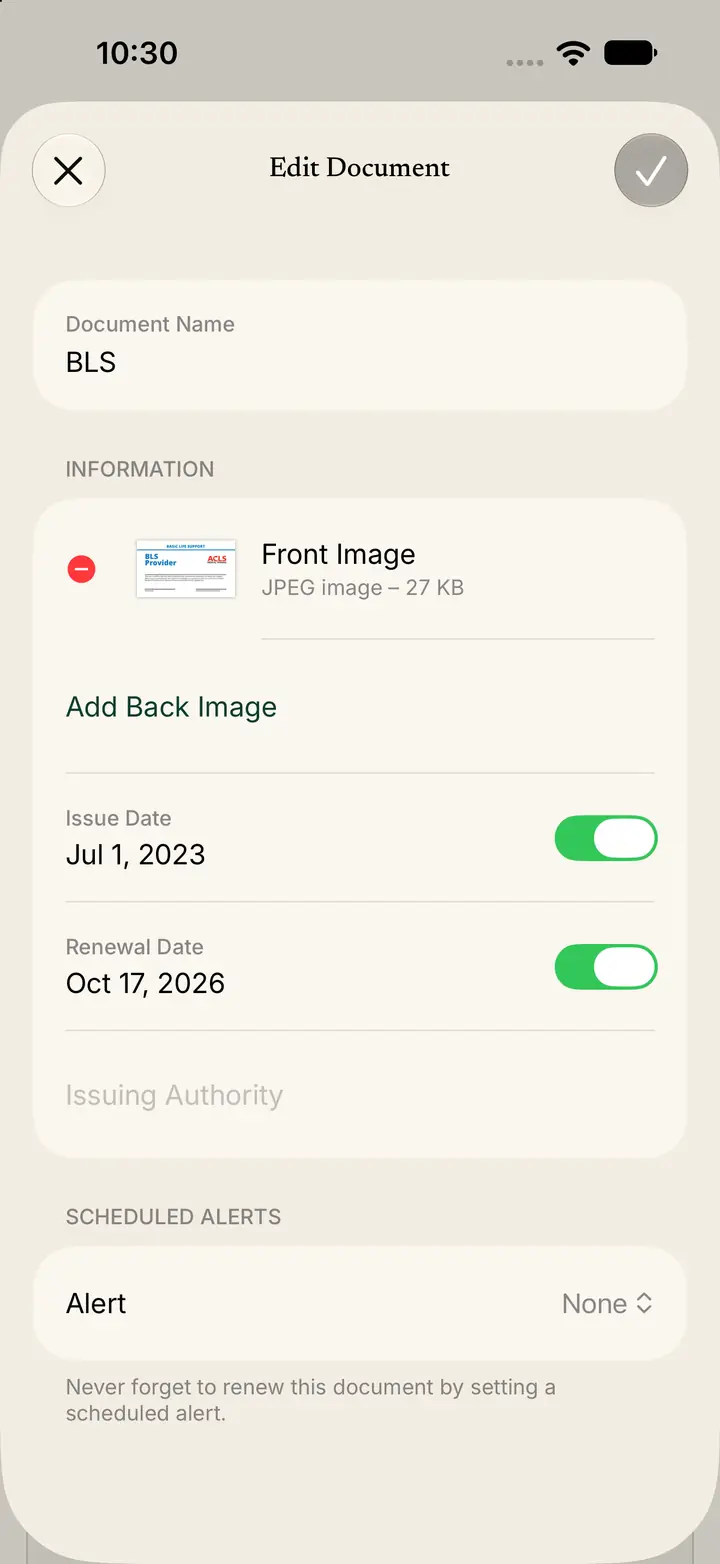
Edit a document
Open the document, tap Edit, change what is wrong, and save.
Open the document
Open the document when a date, image, or alert needs a correction.
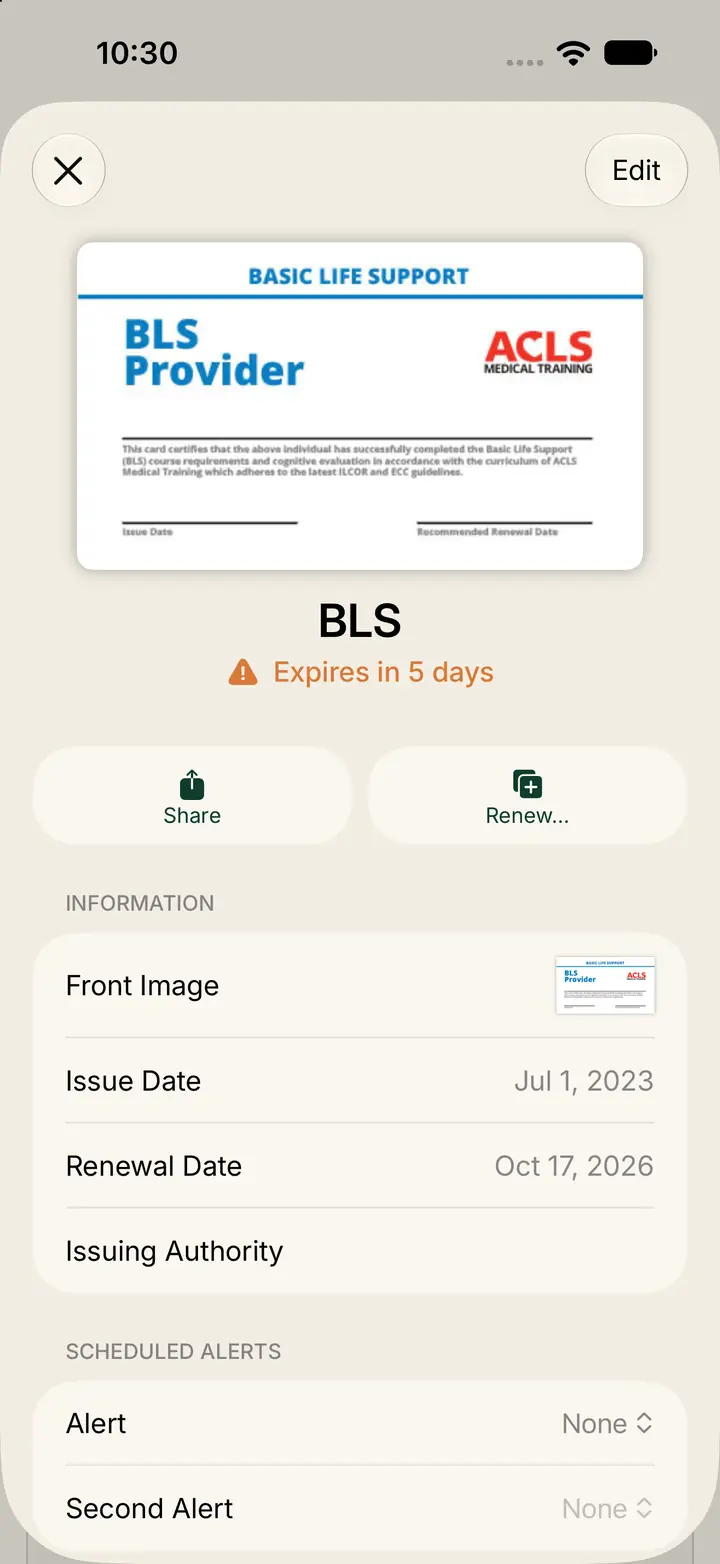
The screen shows how soon it expires, plus Share and Renew.
Information lists the images and the fields for that document. Scheduled Alerts lists Alert and Second Alert.
Tap Edit.
Expect fields to follow the document type
A certification shows the front image, issue date, renewal date, and issuing authority.
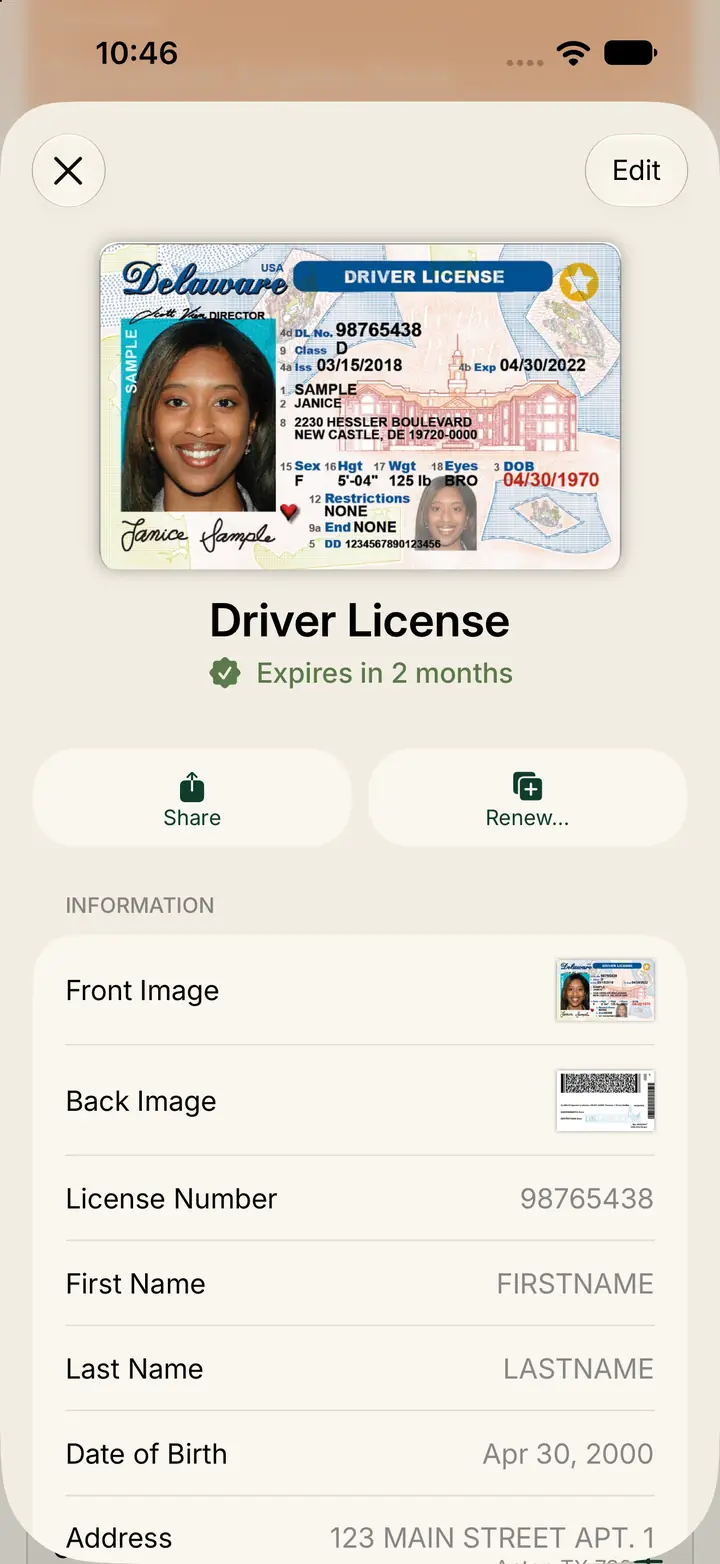
A driver license shows front and back images, license number, first name, last name, date of birth, and address.
Share, Renew, and Edit are available on both.
Update the fields and save
On Edit Document, change Document Name if you need a clearer label.
Replace the front image, or tap Add Back Image if the back is missing.
Update Issue Date and Renewal Date.
Set Alert if you want a reminder. The form notes that a scheduled alert helps you renew on time.
Save when the changes look right.