Add a document
Choose a type, add the images and renewal date, then save.
Start from Home or your list
Add a document when you want it in your wallet and eligible for a renewal reminder.
On Home, tap + next to a document under Commonly Added Documents.
Or open All Documents and tap +.
Pick a category, a popular type, or search
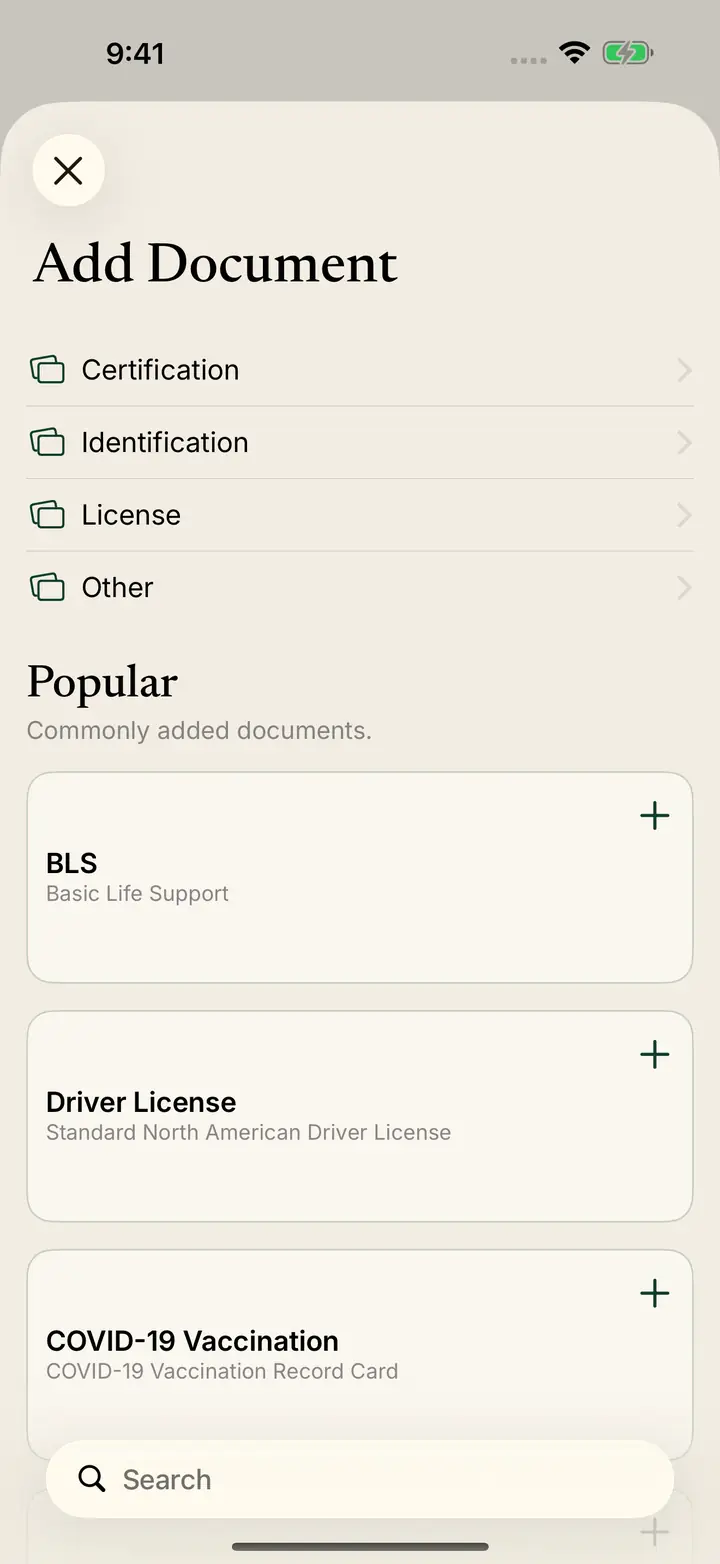
Add Document groups types as Certification, Identification, License, and Other.
Popular lists commonly added documents, such as BLS, a driver license, and a COVID-19 vaccination card. Tap + on a row to use that type.
Use Search if you already know the name.
Or open the full popular list
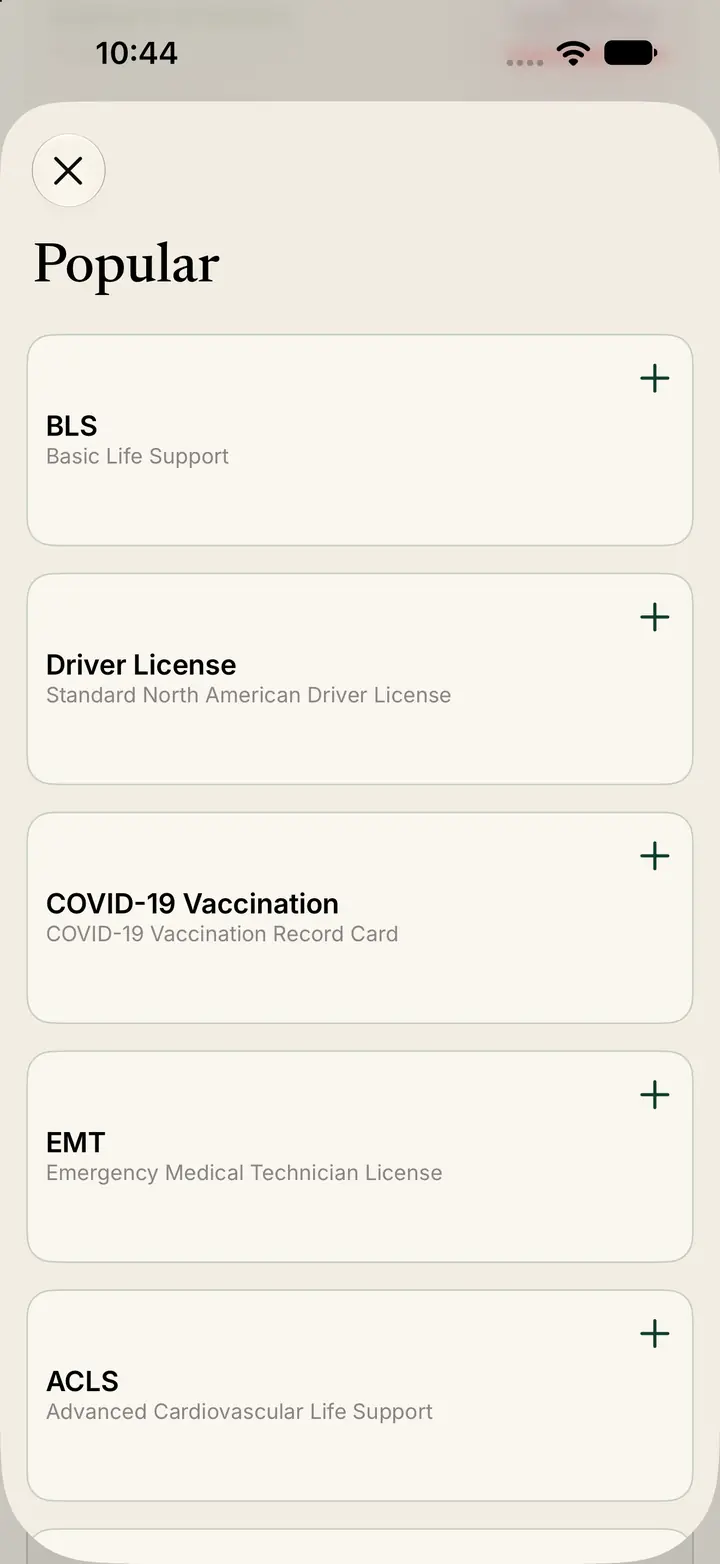
The Popular list includes BLS, driver license, COVID-19 vaccination, EMT, and ACLS.
Tap the type you are adding.
Or browse a category
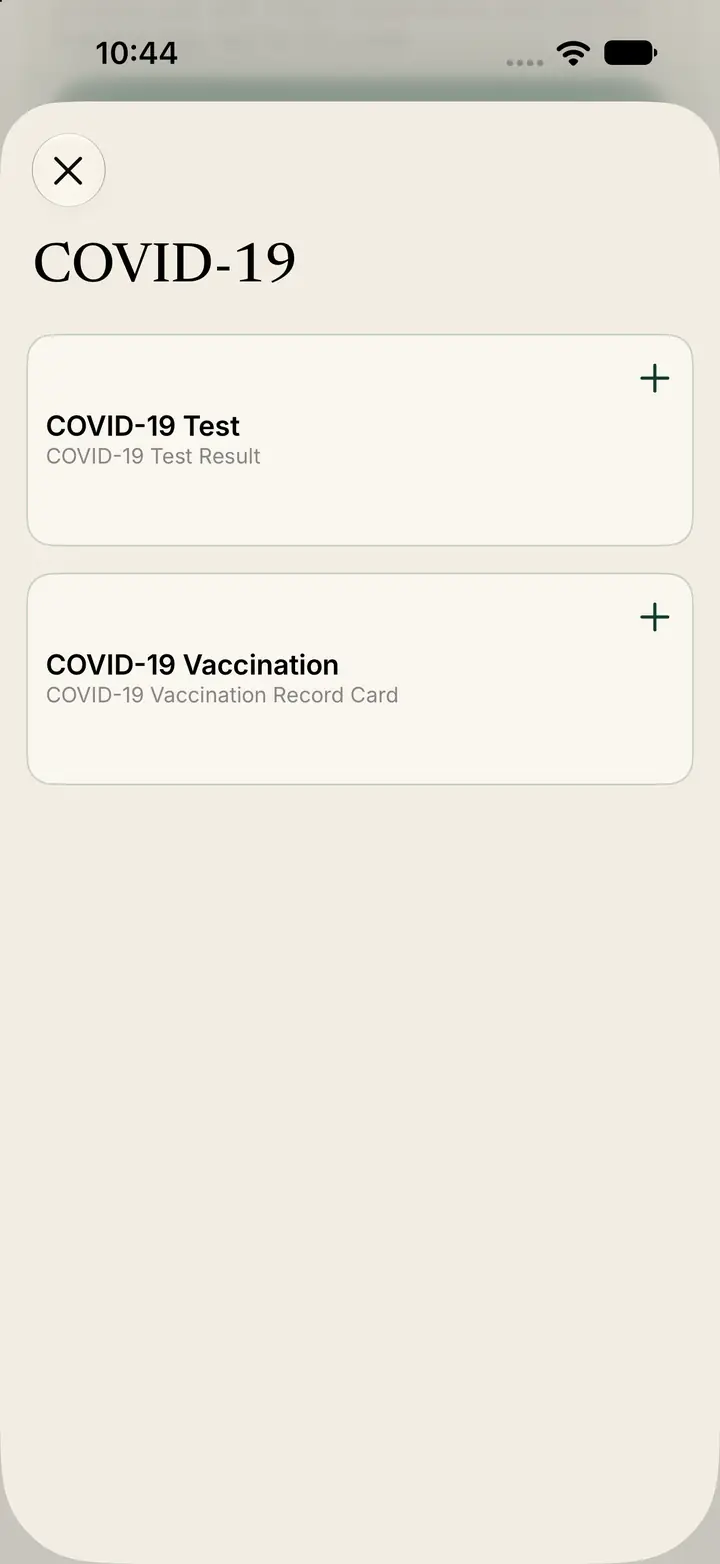
Open a category when the type is not in the short popular list.
For example, the COVID-19 category includes a test result and a vaccination record card.
Tap the type you want.
Add the images, date, and alerts
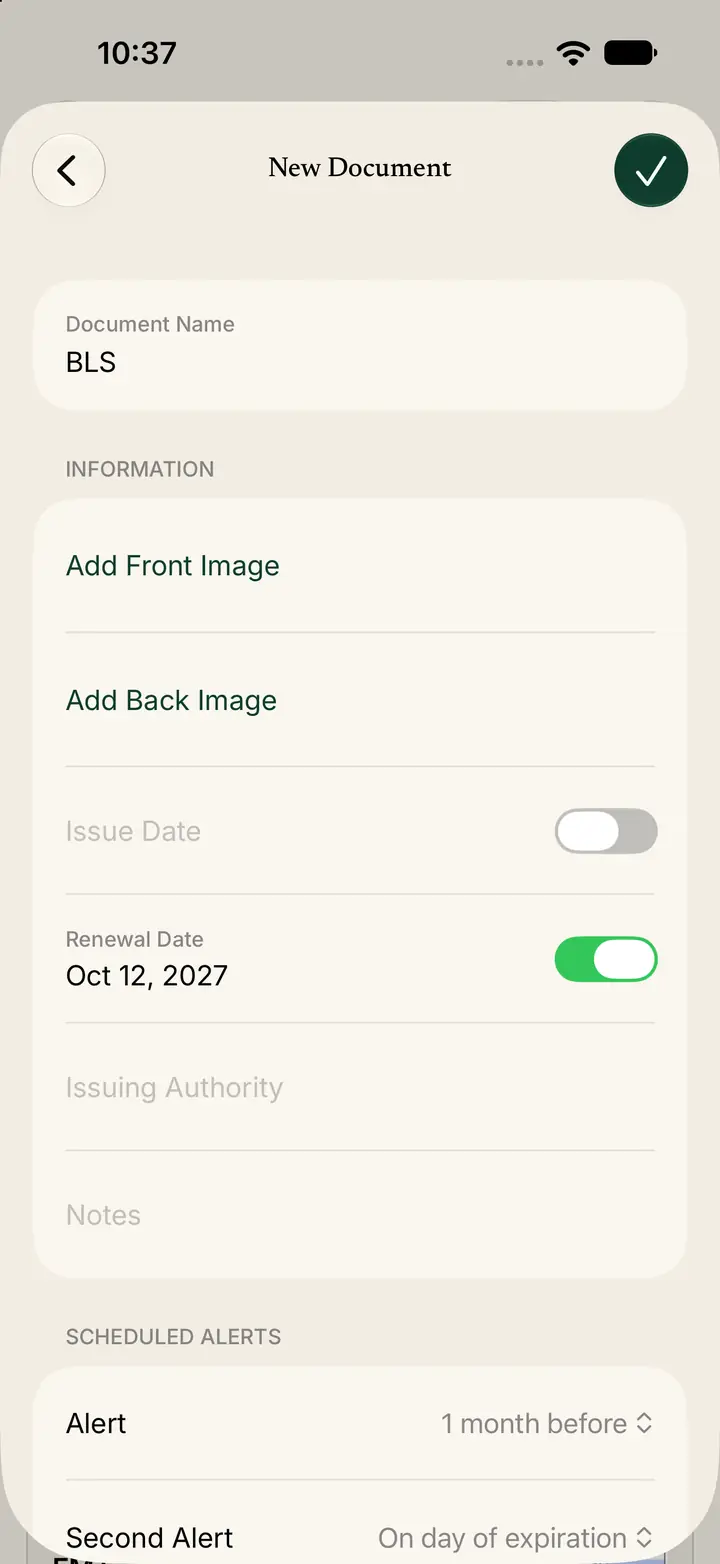
New Document fills in Document Name from the type you chose. You can change it.
Tap Add Front Image. Tap Add Back Image if the card has a back.
Set Renewal Date so Trust knows when this copy expires.
Under Scheduled Alerts, set Alert and Second Alert. A useful pair is one reminder before the date and one on the day it expires.
Save when the form is complete.